
Operation App — Order Desk
Every order, every branch, one desk.
The order desk that watches every incoming order, confirms it, routes it to the right branch and gets it on a driver — without ever touching the till.
What it does
- Watch order queues by state across branches
- Verify the customer and address, then confirm
- Route an order to another branch or kitchen
- Assign a driver and release scheduled orders
- Refund, discount or edit — all logged
- Act as a central kitchen-print hub
Why it matters
One team watches every incoming order, confirms it, routes it to the right branch and gets it on a driver — without ever touching the till.
How it works
The workflow is the product. Here’s the path an order takes.
From “pending” to delivered
One team owns the queue across every branch.
- Order arrives
- Pending queue
- Verify & confirm
- Route to branch
- Assign a driver
- Delivered
What it does at the desk
Real screens from the app — the same desk your operations team runs every shift.
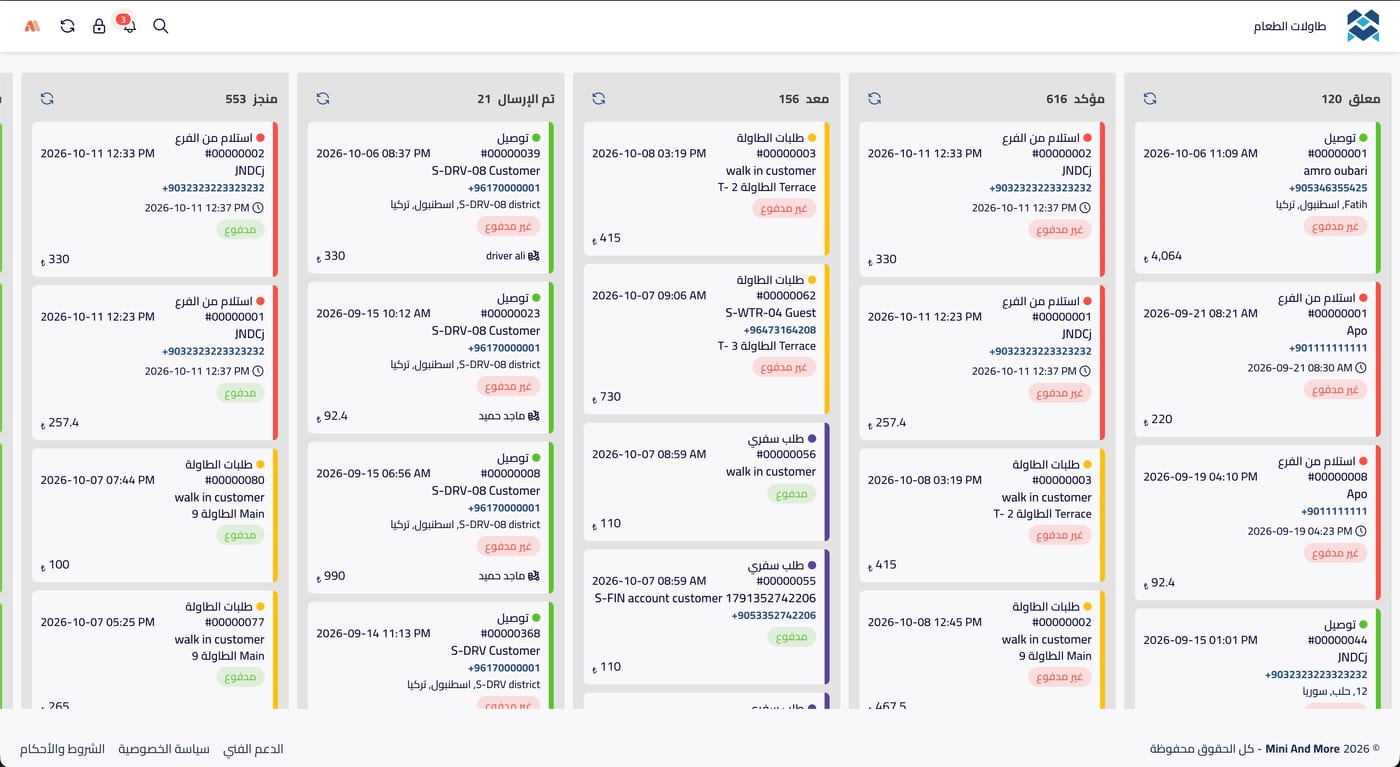
Every queue, every branch
Orders sit in columns by state — pending, confirmed, ready, sent, done — with a live count on each, across every branch at once.
- A column per state, with counts
- Delivery, pickup, dine-in and takeaway tagged by colour
- Customer, phone and address on each card
- Paid / unpaid and the assigned driver at a glance
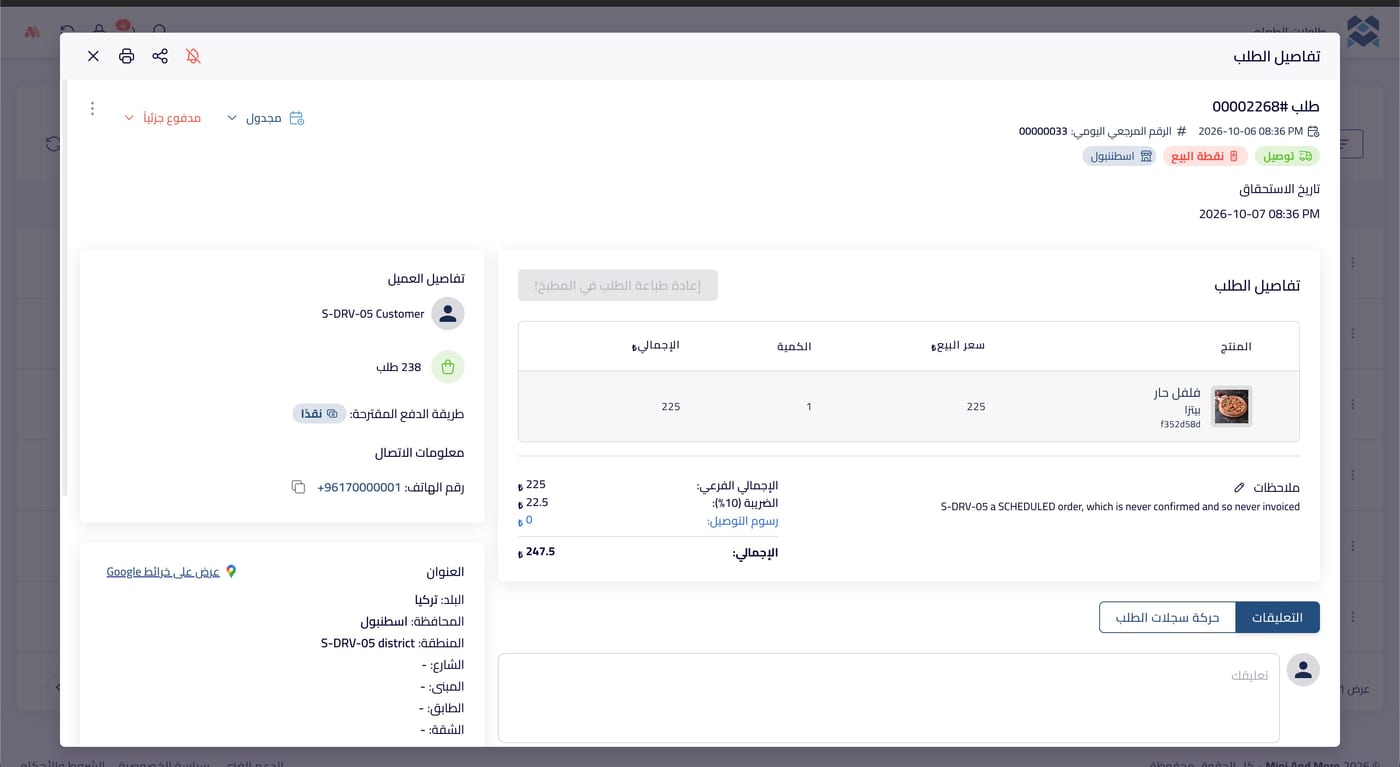
The whole order, in one view
Open any order to see the customer, how often they order, their address on the map and every line — then print, share or reprint to the kitchen.
- Customer details and order history count
- Full address with a Google Maps link
- Items, tax, delivery fee and total
- Comments and the order’s activity log
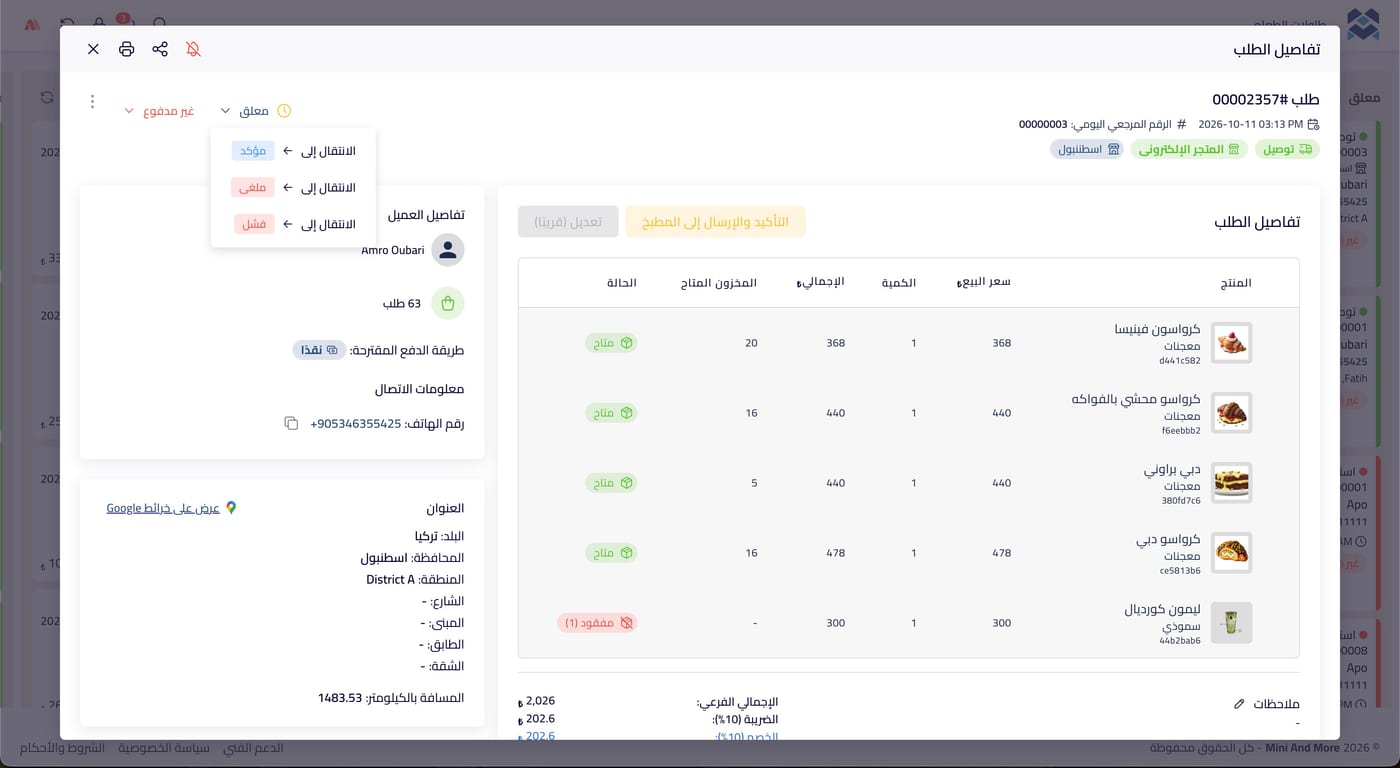
Confirm, check stock, send
Check every item against live stock, move the order to its next state, and send it to the kitchen in one step — or mark it cancelled or failed.
- Available stock shown per item
- Out-of-stock items flagged before confirming
- Move to confirmed, cancelled or failed
- One tap: “Confirm and send to kitchen”
Works closely with
Delivery & Dispatch
Zones, fees, drivers and exactly what each one owes at the end of the shift.
Driver App
The delivery run, from assignment to settlement.
Kitchen Display (KDS)
The screen that replaces the ticket rail.
Orders
One order record from the first tap to the final receipt, whichever channel it came from.
Branches, Roles & Permissions
Many branches, many people, and exactly the access each one needs.
Everything works together
These aren’t separate apps you stitch together. They read the same menu, the same orders, the same customers and the same stock. Change a price once and it changes everywhere. An order started on the website is the same record the kitchen cooks, the driver delivers and the report counts.
Watch an order go from pending to delivered
In a free walkthrough we’ll confirm, route and dispatch real orders across your branches — set up the way your team actually runs.
Free · No commitment · Arabic & English support